Traffic Information is not Displayed
NAVIGATION / MULTI INFO DISPLAY: NAVIGATION SYSTEM: Traffic Information is not Displayed
Traffic Information is not Displayed
INSPECTION PROCEDURE
NOTICE:
Traffic information requires payment. An "XM Nav Traffic Premium Package" contract must be made between a satellite radio company and the user. If the contract expires, traffic information will not be able to be listened to or viewed.
Traffic information does not apply to all roads, only main roads. For information on the latest coverage areas, contact the satellite radio company.
PROCEDURE
1. CHECK DISPLAY
(a) Check the traffic information screen.
Result

B -- CHECK SURROUNDINGS
A -- Continue to next step.
2. CHECK SETTINGS OF SATELLITE RADIO TUNER
(a) Press the MENU button.
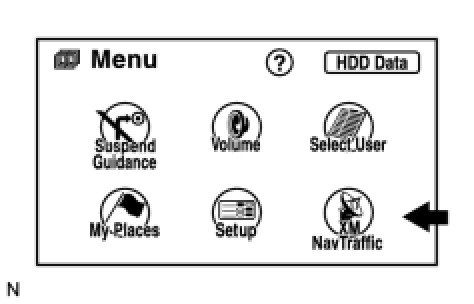
(b) Press XM NavTraffic.
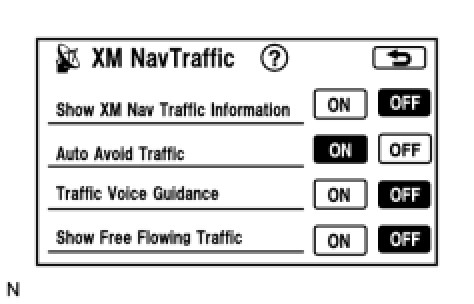
(c) Check if "Show XM Nav Traffic Information" is ON.
OK:
"Show XM NavTraffic Information" is ON.
NG -- TURN "Show XM NavTraffic Information" ON
OK -- Continue to next step.
3. CHECK CONTRACT CONDITIONS
(a) Check if the "XM Nav Traffic Premium Package" contract has been extended, or if the contract period has ended.
OK:
Contract is valid.
NG -- TO RECEIVE TRAFFIC INFORMATION, CONTRACT MUST BE MADE WITH SATELLITE RADIO TUNER COMPANY
OK -- Continue to next step.
4. PERFORM ACTIVATION REFRESH
(a) Perform activation refresh.
HINT:
Refer to the satellite radio tuner company web site. (http://www.xmradio.com/refresh/)
OK:
Malfunction disappears.
NG -- CHECK SURROUNDINGS
OK -- END
5. CHECK SURROUNDINGS
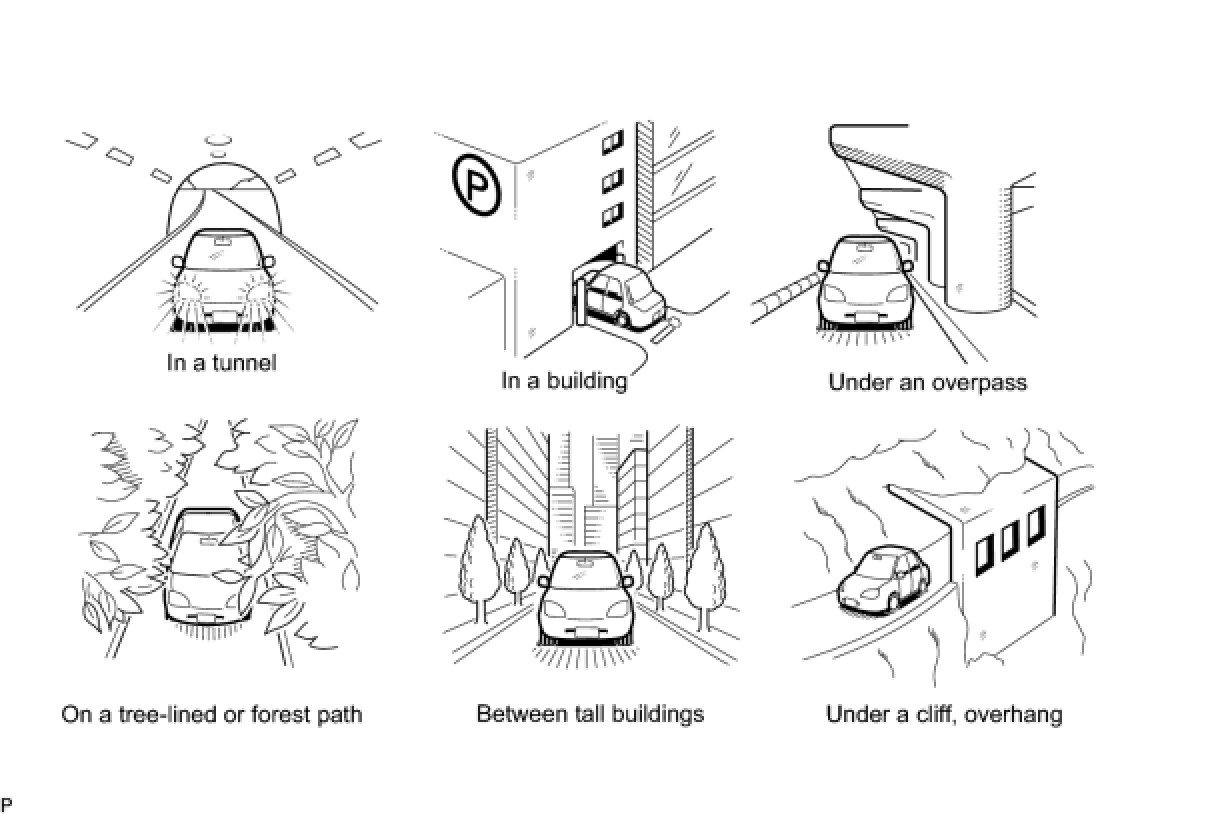
(a) Check if the vehicle is in an environment where reception is difficult due to something blocking the area above the vehicle.
HINT:
If the area above the vehicle is blocked, such as when in a building or tunnel, reception may not be possible.
OK:
Area above vehicle is not blocked.
NG -- END (MOVE VEHICLE TO LOCATION WHERE RECEPTION IS BETTER)
OK -- Continue to next step.
6. CHECK COVERAGE AREA
(a) Check that your current position is within the traffic information coverage area.
OK:
Within coverage area.
NG -- MOVE TO WITHIN COVERAGE AREA (FOR LATEST COVERAGE AREA, CONFIRM WITH RADIO STATION)
OK -- Continue to next step.
7. CHECK AVC-LAN PLUS
(a) Perform the AVC-LAN plus check Operation Check.
Result

B -- CHECK SATELLITE RADIO
A -- Continue to next step.
8. CHECK DTC
(a) Check for display and navigation module display DTCs.
Result

B -- PERFORM TROUBLESHOOTING ACCORDING TO OUTPUT DTC
A -- REPLACE SATELLITE RADIO TUNER ASSEMBLY
9. CHECK SATELLITE RADIO
(a) Check if CH001 (free broadcast) can be received.
OK:
CH001 can be received.
NG -- REPLACE SATELLITE RADIO TUNER ASSEMBLY
OK -- PROCEED TO NEXT CIRCUIT INSPECTION SHOWN IN PROBLEM SYMPTOMS TABLE
10. CHECK SURROUNDINGS
(a) Check if the vehicle is in an environment where reception is difficult due to something blocking the area above the vehicle.
HINT:
If the area above the vehicle is blocked, such as when in a building or tunnel, reception may not be possible.
OK:
Area above vehicle is not blocked.
NG -- CHECK DTC
OK -- END (MOVE VEHICLE TO LOCATION WHERE RECEPTION IS BETTER)
11. CHECK DTC
(a) Check for display and navigation module display DTCs.
Result

B -- PERFORM TROUBLESHOOTING ACCORDING TO OUTPUT DTC
A -- Continue to next step.
12. CHECK CONTRACT CONDITIONS
(a) Check if the "XM Nav Traffic Premium Package" contract has been extended, or if the contract period has ended.
OK:
Contract is valid.
NG -- TO RECEIVE TRAFFIC INFORMATION, CONTRACT MUST BE MADE WITH SATELLITE RADIO TUNER COMPANY
OK -- Continue to next step.
13. PERFORM ACTIVATION REFRESH
(a) Perform activation refresh.
HINT:
Refer to the satellite radio tuner company web site. (http://www.xmradio.com/refresh/)
OK:
Malfunction disappears.
NG -- CHECK DISPLAY AGAIN
OK -- END
14. CHECK DISPLAY AGAIN
(a) Wait for 2.5 minutes, and check again if the actual traffic conditions match the display.
OK:
Actual traffic conditions match display.
NG -- CHECK COVERAGE AREA
OK -- END (NAVTEQ HAS UPDATED DATA OF TRAFFIC CONDITIONS)
15. CHECK COVERAGE AREA
(a) Check if the area on the display that does not match actual traffic conditions is within the XM Nav Traffic coverage area.
OK:
Within coverage area.
NG -- END (TRAFFIC INFORMATION IS NOT DISPLAYED BECAUSE AREA IS NOT IN COVERAGE AREA)
OK -- Continue to next step.
16. CHECK DISPLAY AGAIN
(a) After 30 minutes have passed, check if all traffic information disappears.
HINT:
After traffic information updates have stopped, the navigation system continues displaying traffic information for a maximum of 30 minutes.
OK:
All traffic information disappears.
NG -- NAVTEQ MAY NOT BE PROVIDING DATA VERSION OF CERTAIN TRAFFIC INFORMATION (DATA ERROR, PROBLEM, ETC.)
OK -- SATELLITE RADIO TUNER COMPANY MAY NOT BE TRANSMITTING TRAFFIC INFORMATION FROM NAVTEQ