Video Cassette Player (VCP)
Video Cassette Player (VCP):
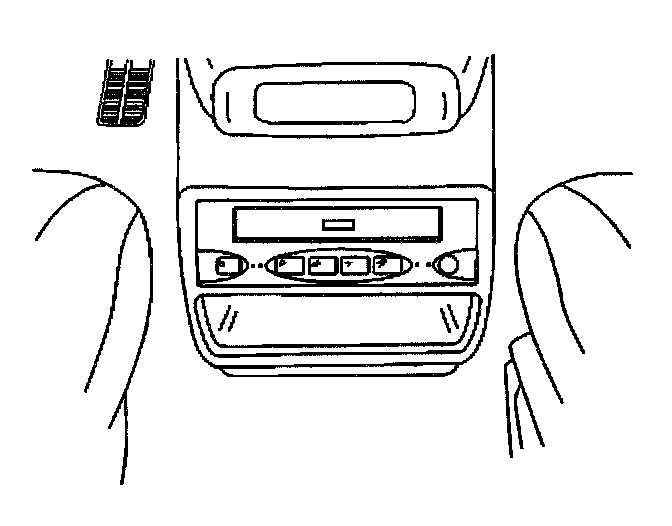
Video Cassette Player:
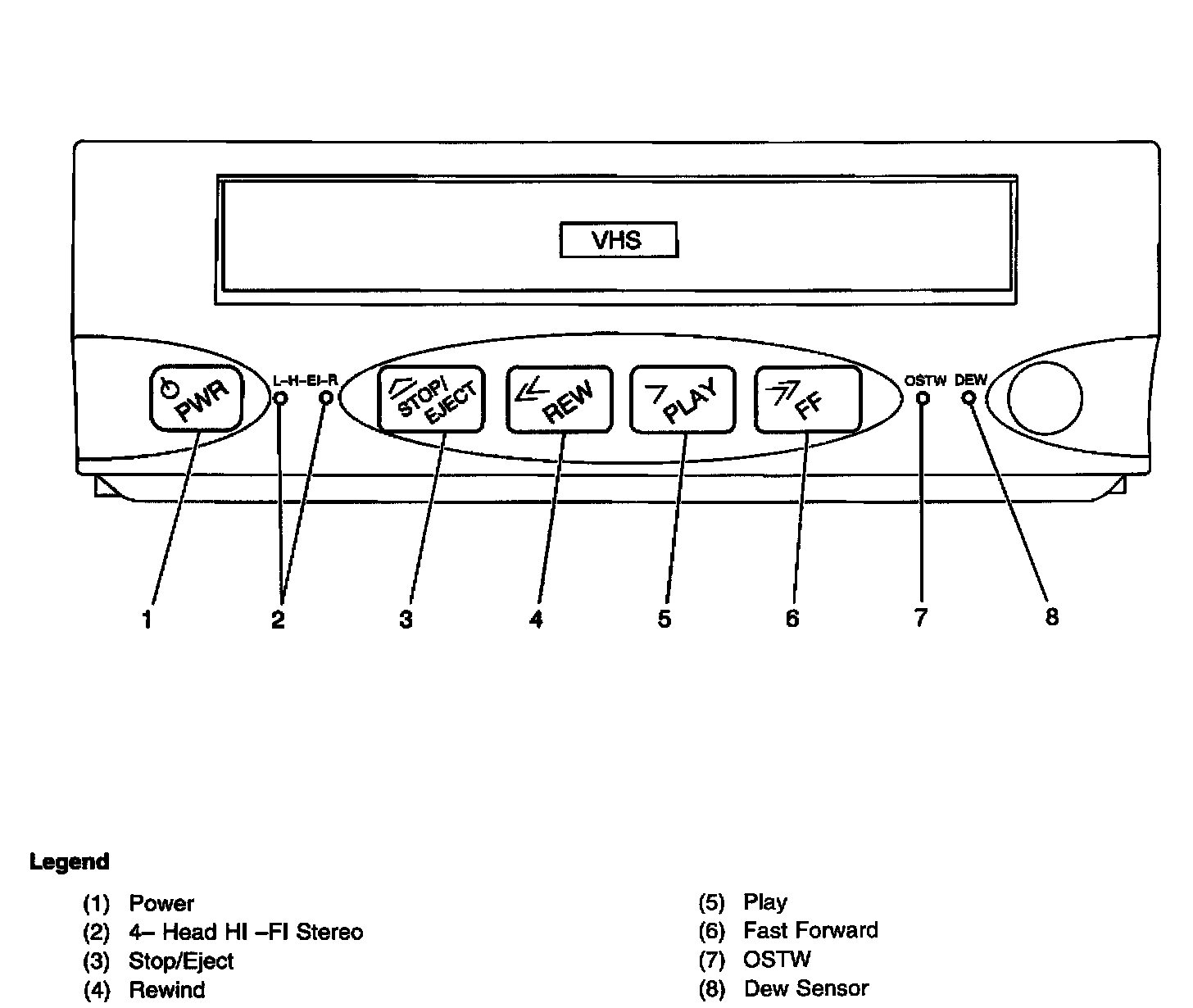
The VCP can playback VHS-format video cassettes (T-30, T-60, T-120, T-160, or T-180). The VCP does not have a recording function.
The VCP can be controlled either by the buttons on its face, or by the infrared remote control. The VCP features include:
^ 4-head Hi-Fi stereo for high-quality playback of VHS tapes.
IMPORTANT: The entertainment system is compatible only with tapes meeting the standards of the NTSC (National Television Standards Committee). This is the standard used primarily in the U.S. video tapes meeting other standards such as PAL and SECAM, which are found in parts of Canada and Europe, will result in video that is only black and white, or distorted. Do not use these tapes.
^ 2-speed playback of Slow Play (SP) and Extended Play (EP) video cassettes.
^ 2-step forward/reverse picture search for quick location of a desired video segment.
^ Dew sensor to warn of condensation in the player mechanism.
^ The VCP will operate slower than a home VCP in other than the play mode to conserve power.
IMPORTANT: Removing a video tape from the VCP when it is not in use, is recommended.
When the ignition switch is in the ACCESSORY or RUN position, the VCP can be powered on independently from the in-dash audio system, even if a video is not playing. As with any of your vehicle's other electrical features, this can drain the vehicle's battery if the engine is not running. Powering on the VCP can be accomplished by pressing the POWER button on either the VCM or the remote, inserting but not necessarily playing the video, or, if a tape is already in the VCP, by pressing PLAY, REW, or FF.
VCP Dew Sensor - Enhance Indicator
When damage-causing moisture condensation is detected within the VCP, the dew sensor circuit automatically prevents the VCP from accepting or playing tapes. When the dew sensor has been activated the enhance indicator, located on the VCP, will flash.
To prevent damaging a video tape that is in the VCP when the enhance Indicator is flashing, press EJECT and remove the tape. Then, be sure the VCP is on so it can warm up and dry any accumulated moisture. When the enhance Indicator stops flashing, the VCP can return to full operation.
Playing A Video Cassette
1. Turn on the VCP (1).
2. Gently insert a video cassette (with the labeled side up) into the cassette compartment until it stops. Then, the VCP will continue loading the tape, and the CASSETTE IN indicator (7) will glow. Prerecorded tapes will automatically start playing.
3. Press the PLAY button (5) on either the face of the VCP or on the remote control.
Ejecting And Resuming Playback
1. Press the EJECT button (3) on the face of the VCP.
2. The tape will automatically unload, the CASSETTE IN indicator (7) will stop glowing, and the video cassette will be ejected
Stopping And Resuming Playback
To stop a video cassette during playback, press the STOP button (3) on either the VCP or remote control to resume playback, simply press the PLAY button (5).
Rewinding A Video Cassette (without Viewing)
Press the STOP button (3) on either the VCP or remote control, and press the REW (rewind) button (4) on either the VCP or remote control.
Fast-forwarding A Video Cassette (without Viewing)
Press the STOP button (3) on either the VCP or remote control, and press the FF (fast-forward) button (6) on either the VCP or remote control.
Forward-and Reverse-search During Play
To forward-search a video while it is playing:
1. Press the FF (fast-forward) button (6) on either the VCP or the remote control.
^ Pressing the FF button once provides rapid advance of the tape.
^ Pressing the FF button once more advances the tape more rapidly.
2. When you find the desired video segment, press the PLAY button (5) on either the VCP or the remote control to resume play at normal speed.
To reverse-search a video while it is playing:
1. Press the REW (rewind) button (4) on either the VCP or the remote control.
^ Pressing the REW button once provides rapid rewind of the tape.
^ Pressing the REW button once more rewinds the tape more rapidly.
2. When you find the desired video segment, press the PLAY button (5) on either the VCP or the remote control to resume play at normal speed.
High-Fi Playback
During the Hi-Fi program playback, the Hi-Fi lamp (2) lights in green. Press the play key during playback, then the VCP enters auto tracking mode. During the autotracking mode press the key once more, then you can select the audio output (Stereo-L-R-Mono-Stereo).